General controls
Open Settings → App → General. Changes apply to the current Echo installation; the controls shown can vary with the operating system and build flavour.
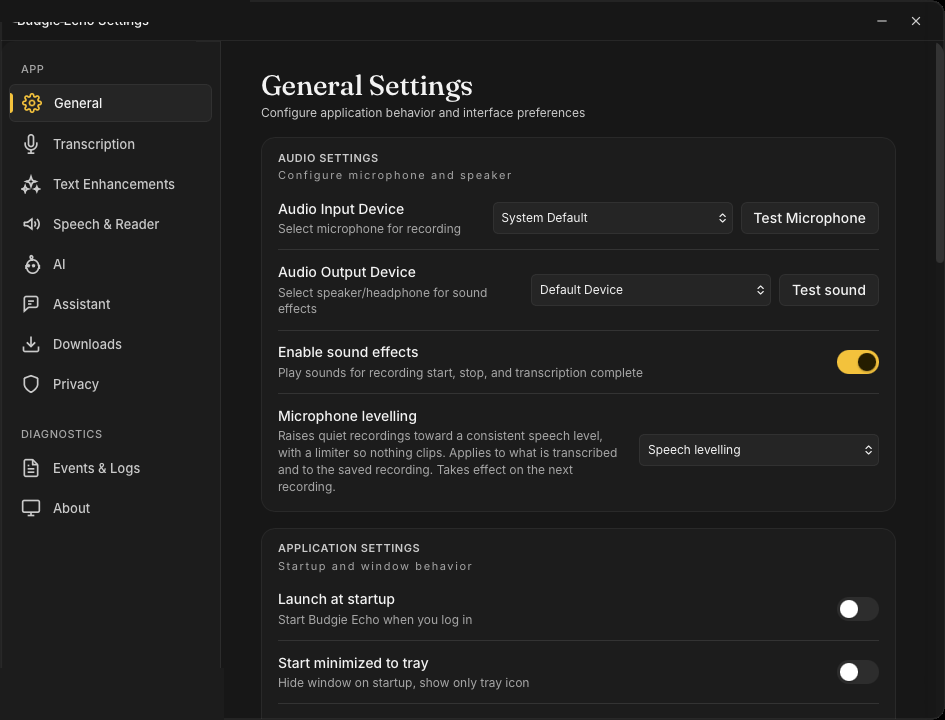
Audio
Choose the Audio Input Device Echo records from and the Audio Output Device used for sound effects. Test Microphone records a short sample and plays it back; Test sound plays the notification cue so you can confirm routing before relying on either.
Enable sound effects controls the recording and transcription cues. It does not change captured audio or workflow output.
Microphone levelling raises quiet recordings toward a consistent speech level with a limiter so nothing clips. It applies both to what is transcribed and to the saved recording, and takes effect on the next recording. Choose Off (raw microphone level) or Speech levelling.
Application
The Application section covers startup and window behaviour: Launch at startup (direct-distribution builds), Start minimized to tray — which hides the window and shows only the tray icon on launch — and Always on top, which keeps the popup above other windows.
Interface
- Interface Language switches Echo's own UI language and applies it to every Echo window immediately.
- Indicator style controls the recording indicator (see Voice indicator below and in The Popup).
- Auto-collapse even while recording retracts the indicator after a short idle period while a capture stays active.
- Show feature tips enables short in-app tips that highlight new features; tips you have seen do not repeat. Reset under this row forgets the seen list so all tips show again.
Mobile sync
Mobile sync lets the Budgie Echo phone app copy its recordings to this machine over the local network — nothing goes through the internet. Receive from phones starts the local listener and reports the port; Pair a phone shows a private pairing key, valid for two minutes, to enter on the phone. Each paired device is listed with its pairing date and can be removed.
Clipboard
Auto-copy to clipboard copies every completed transcription. Auto paste additionally asks the operating system to paste the text into the active application. Keep Auto paste off when the focused application is uncertain.
On macOS, Auto paste needs Accessibility permission. When permission is missing, Echo keeps the text on the clipboard and shows Grant permission and Open System Settings controls right under the toggle. Grant access only to the Echo build you currently use; replacing the app can require the permission to be granted again.
Keyboard shortcuts
This section gathers every global shortcut (they all work from any app, without bringing Echo to the front first):
- Recording Hotkey — starts or stops a recording; with Push to talk it records only while held.
- Pause Hotkey — pauses or resumes an active recording while the Echo window is open.
- Dictate to the last conversation and Dictate to a new conversation — hold-to-dictate shortcuts that send speech straight into the Assistant.
- One row per recipe shortcut, plus Add a recipe shortcut to bind a recipe to a key.
If registration fails, choose a combination not already owned by another application. Mac App Store builds accept keyboard recording shortcuts but not mouse-button bindings; see Platform Support. The full behaviour of each shortcut is documented in Keyboard Shortcuts.
Voice indicator
Indicator style controls the recording indicator:
- Notch aligns the indicator with the top of a supported macOS display.
- Floating Bubble uses a movable floating indicator.
- Off hides the indicator.
Auto-collapse even while recording changes only the indicator; recording continues until you stop or pause it. See Platform Support for platform-specific behaviour.
Always-on listening lives under Transcription; speech settings are in Speech & Reader, not General.