The Recipe Editor
The recipe editor is the canvas inside the Recipes window: create or open a recipe there and work in its Canvas tab. Each open recipe gets its own tab, and the editor header contains graph editing, Console, History, Test run, Configure, Save, and fullscreen controls. The canvas supplies zoom, pan, a minimap, validation messages, and node connections.
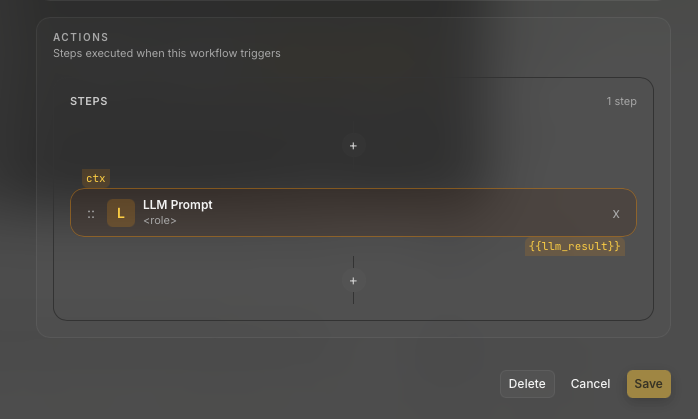
Canvas anatomy
- Nodes are actions. Drag them to arrange the graph, select them to copy or delete, and double-click one to edit it.
- Edges connect a source output port to a target input port. A completed run highlights edges that carried data; click such an edge to inspect the recorded value.
- Configure edits workflow metadata, triggers, Voice Slots, and processing options.
- Save persists the graph's actions, positions, and edges. The Configure dialog has its own Save for metadata.
- Undo, redo, copy, and paste operate on the canvas selection. The editor also warns about orphan nodes, unreachable nodes, and illegal cycles.
Nodes and data
Every node accepts the named control input port main. Every ordinary node exposes a main control output, including actions that do not produce a data value. Control ports decide what runs next; data outputs decide what can be referenced as a variable.
Connecting to a target's main port records the edge. If the target's primary value is empty, the editor also inserts a reference to the source node, such as {{source_node_id}}. At runtime, an action result is stored under its stable node id, while its I/O output name can publish a clearer alias.
Control flow
Control-flow nodes route through named outputs:
- If / Else:
trueorfalse. - Loop:
loopfor the body anddonefor the continuation. - Switch: the first matching
case:<pattern>port, otherwisedefault. - Try / Catch:
tryduring normal execution andcatchwhen a node in the protected scope fails.
Only the port fired by a completed node activates its connected edge. A failed node fires no output port. Ordinary cycles are rejected; a loop-body back-edge into a Loop node is the supported exception.
Entry points
In an explicit graph, an entry point is a node with no non-loop incoming edge. Entry nodes are scheduled first. Multiple entry nodes are allowed and their declaration order provides deterministic tie-breaking.
An isolated node in a graph with more than one node is reported as an orphan. A node that cannot be reached from any entry point is reported as unreachable. Resolve validation warnings before you rely on a run.
An older workflow with no explicit edges remains a linear chain and executes in its saved action order.
Terminal states
A terminal node has no outgoing edge for the port it fires. Reaching it ends that branch. A workflow completes after the scheduler has resolved the reachable graph, including skipped branches; a failure can stop the workflow, follow configured error behavior, or enter a connected catch scope.
The workflow-level Workflow output names the variable returned as the final result. If it is unset, Echo can fall back to a step output or the conventional processed_text value. See Outputs.
Named ports
Port names are part of the saved graph contract. main is the default input and ordinary output. Control-flow names are exact, and Switch preserves the case pattern in case:<pattern>. Renaming a Switch pattern changes the port that its edge must use.
Control and data are separate: a Notification can continue through main without publishing a variable, while an If / Else can publish a data result independently of choosing true or false.
Action picker
Choose + (Add step) to open the picker. Actions are grouped by capability area, including Core, File System, Text, System, App Control, Network, Math & Data, Arrays, Persistence, UI, and Control Flow.
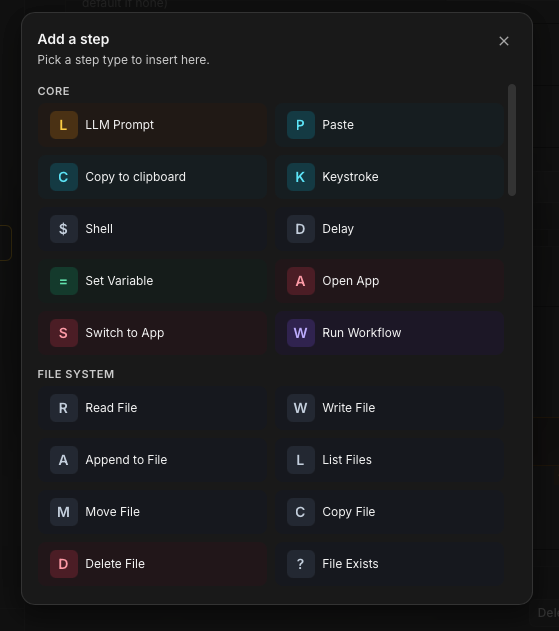
The generated Action Reference is the source of truth for each action's current fields, control ports, data output, execution status, permission boundary, and runtime confirmation.
Node Config and I/O tabs
Double-click a node to open its editor:
- Config contains the action-specific fields and an optional custom name. Connected upstream nodes may appear as insertion shortcuts.
- I/O selects the primary input for actions that accept one, names the output for actions that produce one, and lists variables currently in scope.
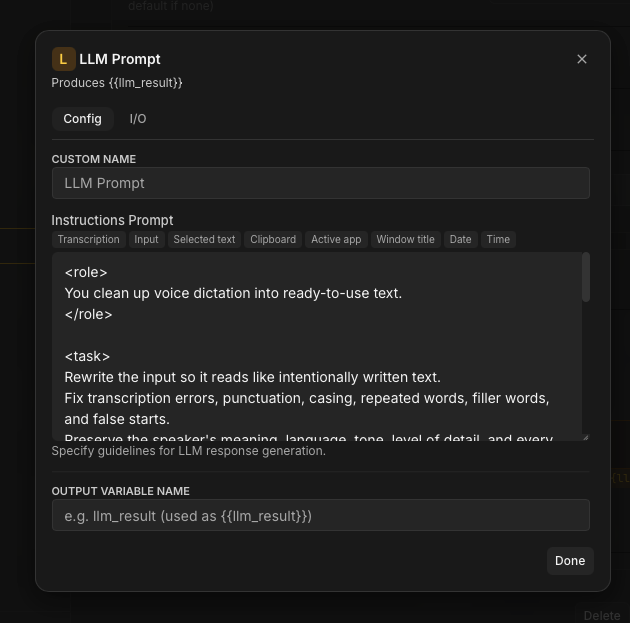
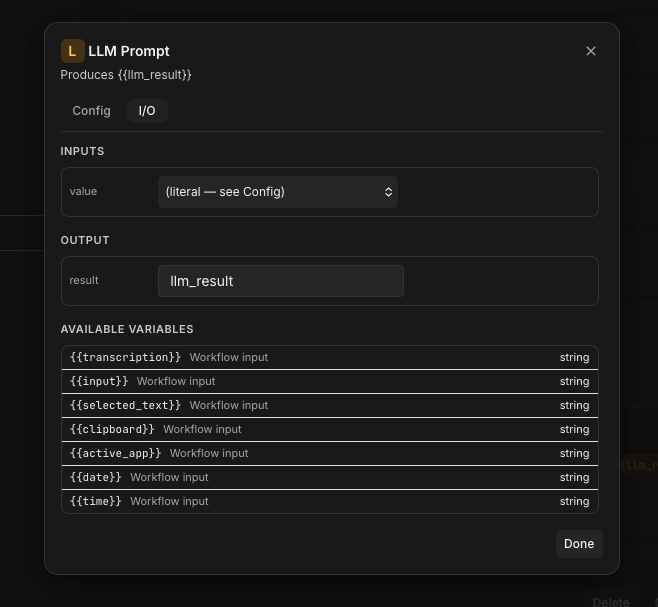
The I/O list is forward-only: it contains workflow inputs and outputs from earlier actions in the saved action order. For complex graphs, prefer explicit edges and stable, descriptive output names, then verify actual data flow in Workflow runs.