Assistant
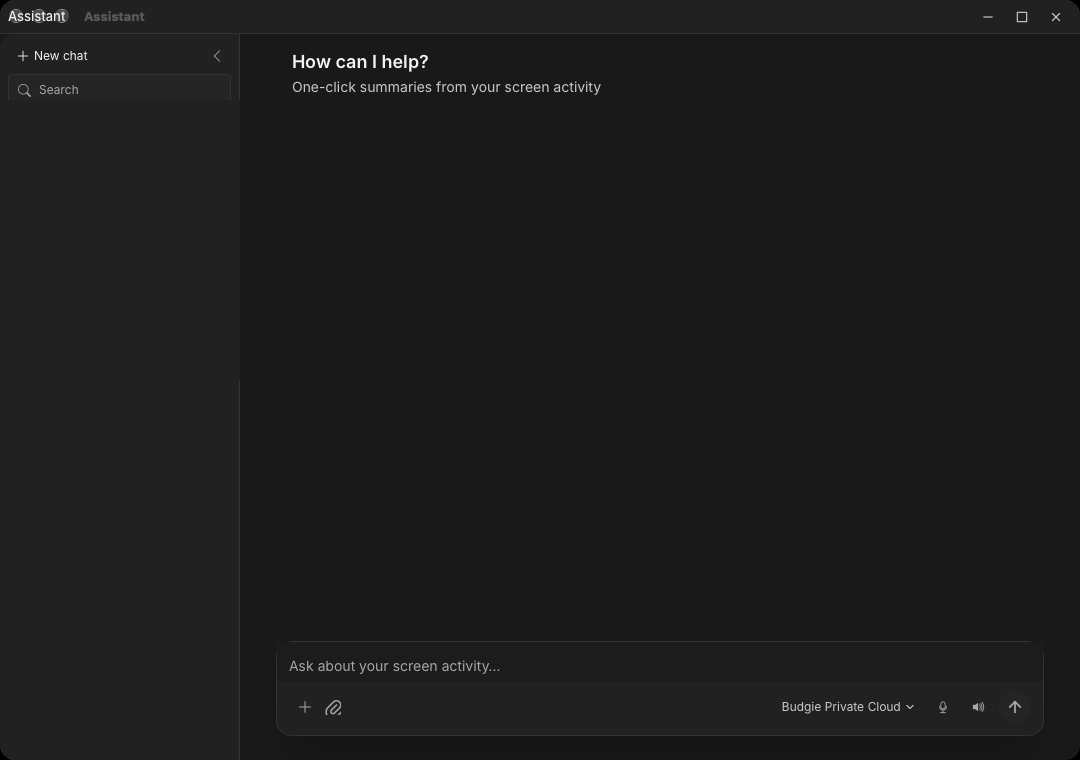
The Assistant is Echo's chat window: a full conversation surface with session history, dictation, and tool actions that are gated by an explicit consent prompt. Open it from the popup's Assistant action, or from anywhere with its global shortcuts (see Keyboard Shortcuts).
Which model answers, how long it thinks, and how it listens are configured under Settings → App → Assistant.
Sessions
The sidebar lists your saved conversations. You can start a new session, switch between earlier ones, rename them, or delete them. Sessions are stored locally on this machine, and the composer keeps the model picker, thinking-effort control, and tool toggles per conversation.
Writing and dictating
Type in the composer and press Enter, or dictate into it with the composer's microphone control — interim speech appears as you talk, and stopping the capture places the text in the composer for review before sending.
Two global push-to-talk shortcuts dictate straight into the Assistant:
- Dictate to the last conversation holds a key, takes your speech, and sends it to the conversation you used last.
- Dictate to a new conversation does the same but starts a fresh conversation every time.
Both shortcuts are unbound by default and can be set under Settings → App → General → Keyboard Shortcuts. When the Assistant window is closed, a small panel on the recording bubble lets you pick the model that receives the dictation, whether the answer is read aloud, and whether the window opens in the foreground.
Model and effort
The composer's model picker selects the model for the current conversation; the Settings default applies when you have not chosen one. The thinking-effort control asks reasoning models to think longer before answering — slower but more thorough on hard questions. Models without a reasoning mode ignore it.
Consent for actions
The Assistant can do more than answer: it can use tools that act on your machine or data. Every such action opens an Allow this action? prompt before anything runs, showing what was requested, why, the tool involved, its risk and sensitivity rating, the arguments, and a preview of the proposed change when one exists. Choose Allow once or Refuse; refusing sends nothing.
This consent gate applies to every submitted message and to edited-and-resent messages alike. It is an action gate, not a content filter — ordinary chat replies do not prompt.
Spoken answers
When spoken feedback for the Assistant is enabled — the same Read the answer out loud toggle offered on the bubble panel — each completed answer is read through Echo's speech service. Disable it there or under the speech settings in Speech & Reader.
Assistant conversations are stored locally; see Privacy & Data before pointing the Assistant at sensitive material, and remember that the selected model's provider receives whatever the conversation contains.