The Popup
The popup is Echo's main recording and result surface. Its available actions change with the capture state so that recording controls are not mixed with result controls. The window resizes with its content: a compact strip while recording, the idle card, and up to a taller view for long results.
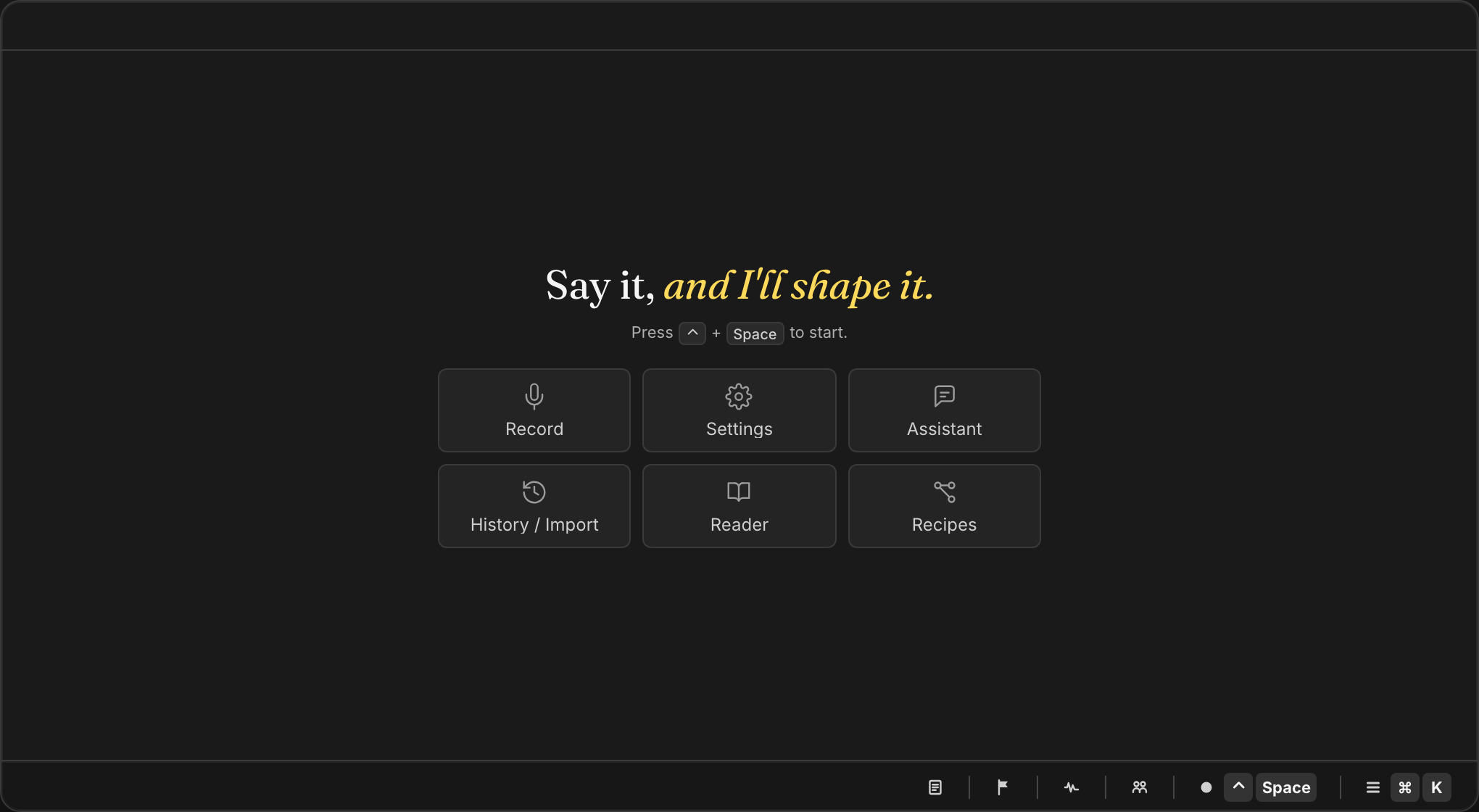
Idle
The idle popup shows a tagline, a hint line with your current shortcuts — hold the recording shortcut to start, plus the snippet shortcut for voice snippets — and a six-button grid:
- Record starts a capture immediately.
- Settings opens the settings window.
- Assistant opens the Assistant chat window.
- History and Import opens the History window.
- Reader opens Reader.
- Recipes opens the recipe studio.
The footer carries the capture defaults used by the next recording, each as its own selector:
- Workflow — what happens to the text after transcription: leave it as spoken (Voice Only) or apply a workflow such as Clean with Scribe.
- Language — the transcription language for the next capture.
- Transcription model — which downloaded local model transcribes it, with a shortcut to model downloads when none is ready.
- Diarize — whether speaker labels are produced.
- Record with the recording shortcut badge.
The trailing Actions menu provides window and application controls: surfacing the main interface, Reader, Settings, Recipes, History, and Quit. Menu entries hidden by the active build or feature configuration are not part of the menu contract.
Recording
After recording starts, the popup shrinks to a live strip: the elapsed timer with a recording cue, the live transcript when the selected local model provides interim text, and three transport actions:
- Pause or Resume while a capture is active (the configured pause shortcut works here too).
- Stop to finish capture and begin transcription processing.
- Cancel to discard the active capture and return to idle.
The window title and the compact voice indicator mirror the same state.
Processing
After Stop, Echo enters processing. The last live text remains visible with processing styling while the final transcription and optional workflow result are prepared, and a status line explains the current phase — finishing the recording, transcribing, or applying a workflow. Result-only actions stay unavailable until completion, and pause/stop are locked. Cancel returns the popup to idle.
Result
The result state displays the final transcription or the latest workflow output. The footer exposes Transform with AI…, an Apply workflow picker, and Close, which copies the visible text and clears the result view.
- Show original / Show AI switches between the raw transcription and a processed result when both exist.
- Transform with AI… writes a one-off instruction without creating or saving a workflow: Echo runs an ephemeral single-LLM-node pass against the visible result, replaces the displayed text, and saves the run to History. The original transcription remains available through Show original.
- Apply workflow lists Clean with Scribe plus your enabled workflows eligible for the result.
- The Actions menu provides Copy to clipboard and Cancel (delete), which deletes the current History entry when one exists and clears the popup.
Pressing Enter (or Close) copies and closes. Automatic copy and paste follow the current Settings → App → General clipboard values. When Echo notices a word you corrected by hand, an "Apply these corrections automatically?" card offers to turn the fix into a replacement for this app only or everywhere.
While Reader is playing, the popup can also host the compact quick reader with its own Pause/Resume and Close controls (see Reader).
Voice indicator
The compact voice indicator mirrors the capture lifecycle: idle, recording, processing, post-processing, completed, or error. Depending on state and hover, it can expose start, stop, pause or resume, elapsed time, a recent text fragment, and copy; clicking the bubble while it works stops the same capture.
Choose the presentation under Settings → App → General → Indicator style:
- Notch for the top-aligned presentation that uses the hardware notch when present.
- Bubble for the Floating Bubble presentation.
- None to hide the indicator.
The indicator and the main popup share the same recording state. Use the popup when you need the complete text, result actions, or workflow picker.